Draw Scaled Floor Plans Fast
Use Cedreo to create a floor plan to scale that prints clean, reads fast, and stays accurate without CAD stress.
How to Draw a Floor Plan to Scale
Cedreo simplifies how to draw a floor plan to scale, even if you have never used an architect’s scale or complex software.
Follow the three steps below to go from a rough sketch or existing plan to accurate scale drawings you can share with clients and crews.
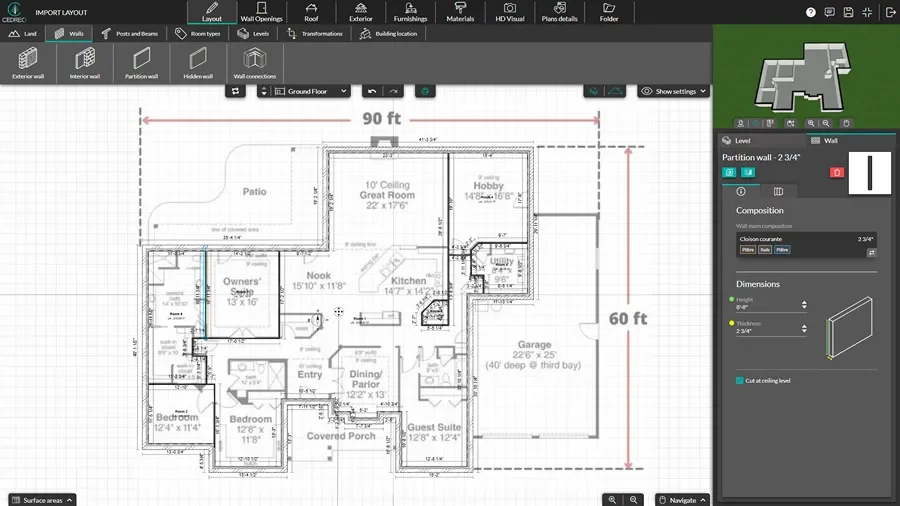
Import & Draw Floor Plans
Start with accurate measurements so your scaled floor plan matches real room measurements.
- Import an existing plan (PDF, PNG, JPEG, DWG, or DXF), then trace it to get your starting point.
- Adjust wall lengths, angles, and wall thicknesses as needed, then label room types.
- Resize the full layout with one click to test different sizes without redrawing the plan from scratch.
Add Doors, Windows & Other Symbols
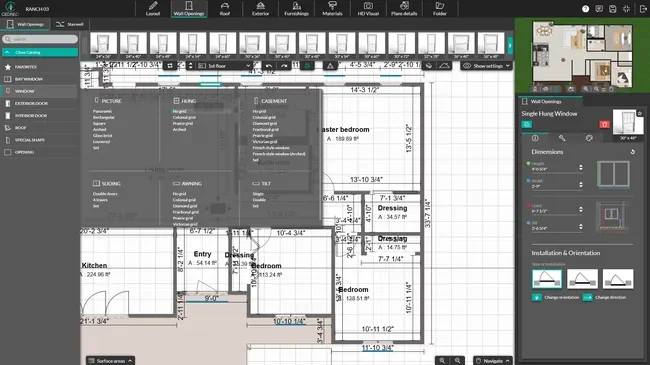
Place architectural elements and other room elements so the floor plan reads clearly for everyone.
- Use the drag and drop editor to add doors, windows, and other wall openings.
- Click and drag to fine-tune placement and double-check measurements as they update.
- Add symbols for furniture, cabinets, decor items, plumbing, and electrical.
- From the Folder tab, add text, dimensions, and custom annotations.
Select the Scale & Download
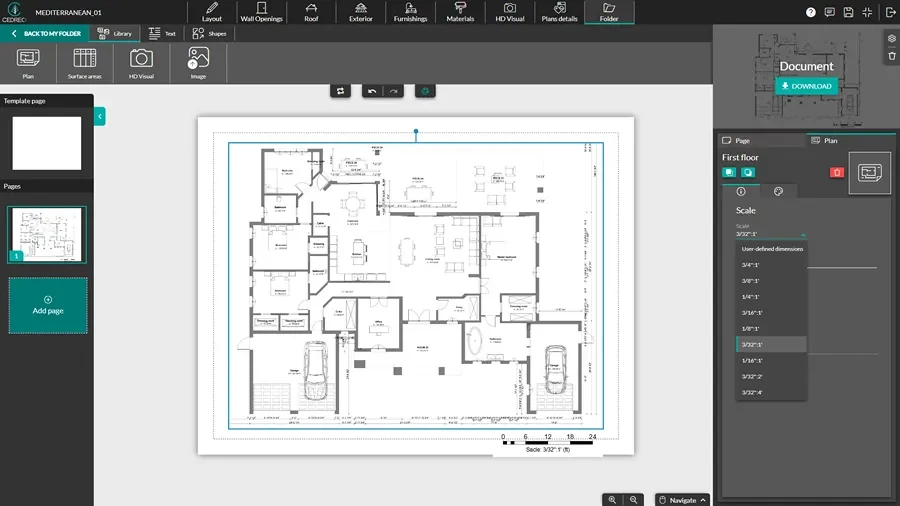
Now it’s time to choose the right scale and export it for sharing or printing.
- From the Folder tab of the editor, or from the Project Information section of your project dashboard, find the plan you want to export.
- Select the desired format, such as PDF or DXF.
- Use 1/4″ = 1′-0″ (1:50) for detailed room layouts, 1/8″ = 1′-0″ (1:100) for whole-floor overviews, and 1/16″ = 1′-0″ (almost 1:200) or a smaller scale when a site plan needs the full lot on one sheet.
2D Floor Plans With Accurate Measurements
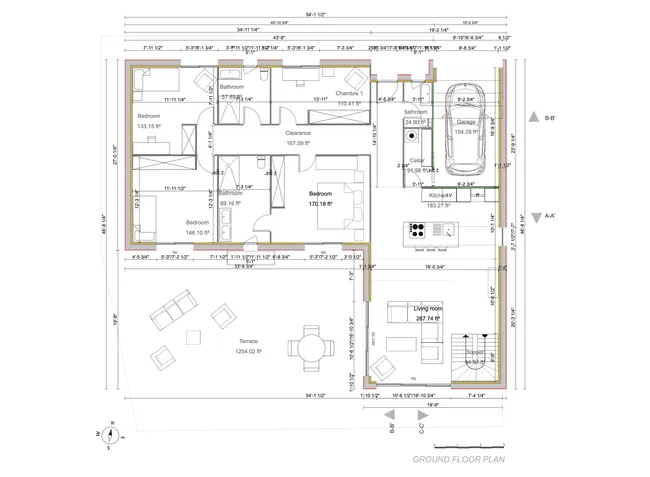
Cedreo helps you create professional floor plans that show accurate measurements and reduce rework.
These 2D floor plans give contractors, remodelers, and interior designers a fast way to lock-in the layout before work starts.
- Accurate measurements: Add dimensions and confirm room measurements using automatic inputs instead of manual math.
- Clear readability: Labels, symbols, and notes help clients and crews understand the plan at a glance.
- Surface area tables: Floor area tables showing living, finished, annex, glazed, and total site square footage calculations give you up-to-date totals as you work.
Site Plans Drawn to Scale
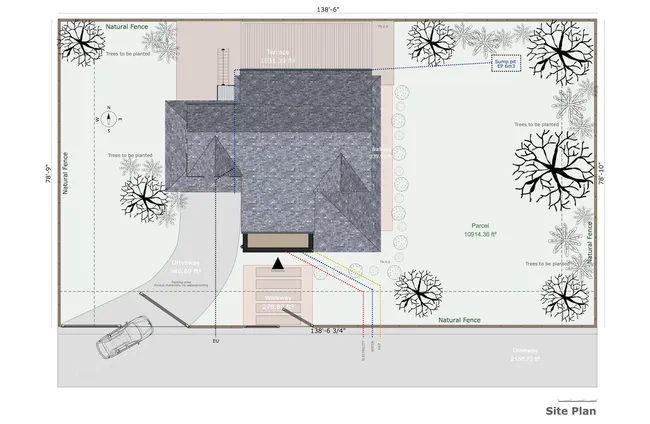
A scaled site plan shows how the building sits on the property, so you can plan smarter from day one.
Use it to communicate boundaries, access, and exterior ideas in one clean drawing.
- Property lines: Show lot lines and key reference points so the buildable area stays clear.
- Setbacks and context: Add setback lines and site markers to guide early planning talks.
- Outdoor elements: Map driveways, paths, patios, landscaping, and other elements for a complete concept.
- Terrain notes: Indicate grade changes and site shape so elevations and access make sense.
Cross Sections & Elevations With Accurate Scale
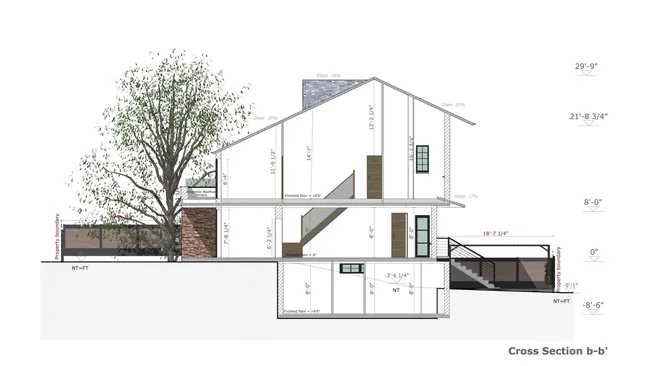
Cross sections and elevations help you explain heights, layers, and exterior intent without guesswork.
They also support better coordination by showing vertical information that a floor plan cannot.
- Manual dimensions: Add the dimensions you need on the section plan, including floor-to-floor heights.
- Grade benchmarks: Show vertical elevation benchmarks referenced to natural grade levels, and add finished grade when needed.
- Exterior clarity: Communicate roof lines, openings, and facade intent in elevation drawings.
- Fewer mistakes: Give crews and clients the views they need to reduce misreads and change orders.
Top Features for Creating Scale Drawings
Cedreo combines speed with an intuitive interface, so you can create scale drawings, present them well, and keep projects moving.
These are the top features that make that happen.
Multiple Scales
Choose the right scale for each sheet (from 3/4”=1’ to 3/32”=4’), whether you need detail, overview, or a full property fit.
Print Controls
Set paper size, orientation, and margins so your drawings print to scale without trial and error.
PDF and DXF Export
Share a clean image for printing, or hand off DXF files for downstream edits in CAD workflows.
Branded Presentation Documents
Combine scaled floor plans, site plans, and visuals into a client-ready document with your branding.
World-Class Support
Cedreo support is designed to keep your projects moving. Instead of user forums and contact forms, you get access to real people who are invested in your success.
Easy to Learn & Intuitive
The drag-and-drop tools and intuitive workflows help you and your team get up to speed fast, even with no previous design experience.
Examples of Floor Plans With Scale Created in Cedreo
From compact remodels to expansive chef’s kitchens, Cedreo’s 3D kitchen planner helps you design spaces that balance beauty, function, and flow. Here are some real examples of kitchens created with Cedreo.
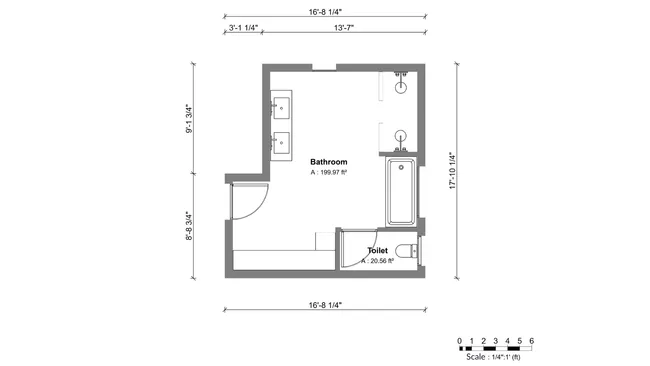
Bathroom layout detail (1/4″ = 1′-0″)
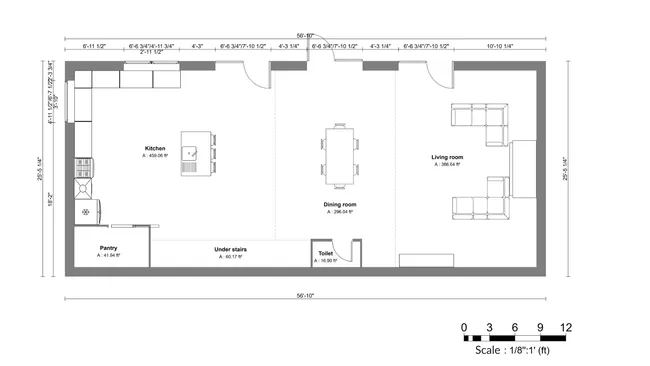
Great room floor plan (1/8″ = 1′-0″)
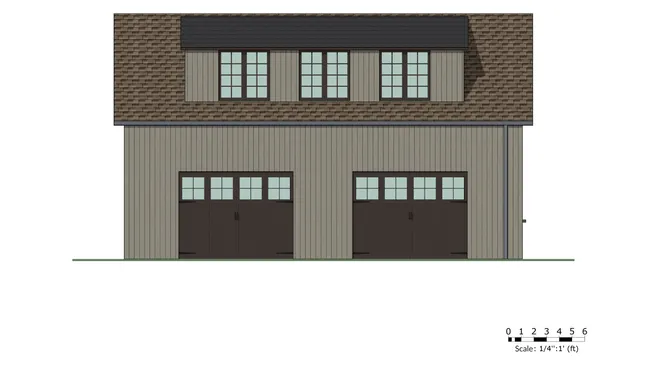
Detached garage elevation (1/4″ = 1′-0″)
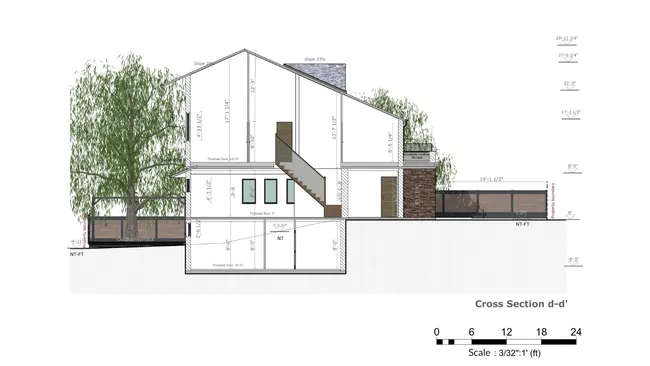
Cross section (3/32″ = 1′-0″)
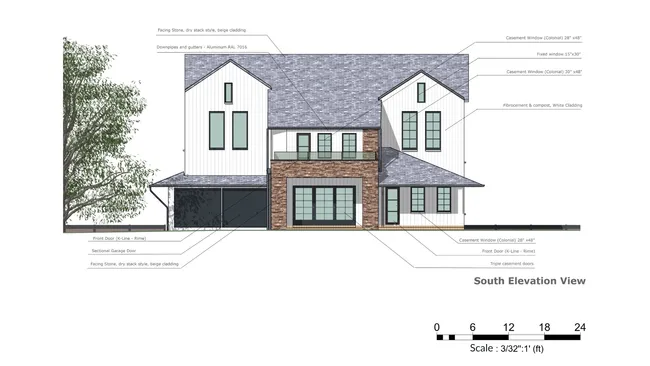
Front elevation (3/32″ = 1′-0″)
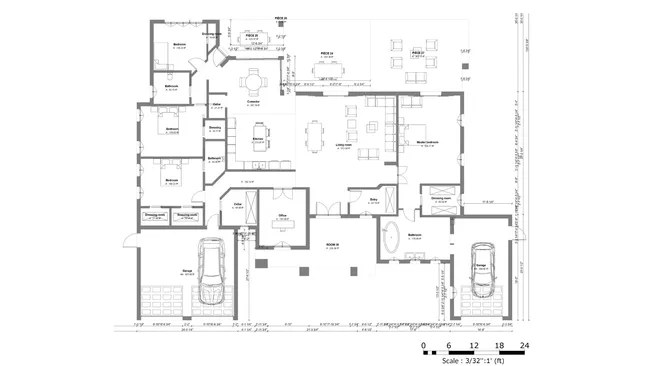
Whole house overview plan (3/32″ = 1′-0″)
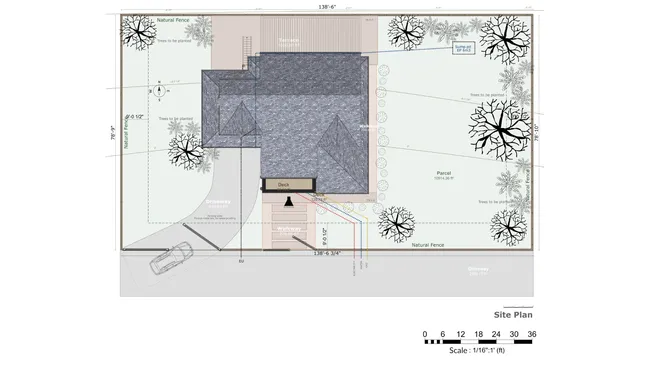
Full lot site plan (1/16″ = 1′-0″)
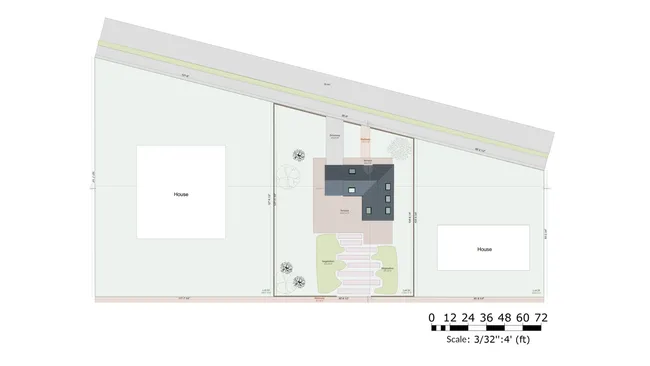
Neighborhood context plan (3/32″ = 4′-0″)
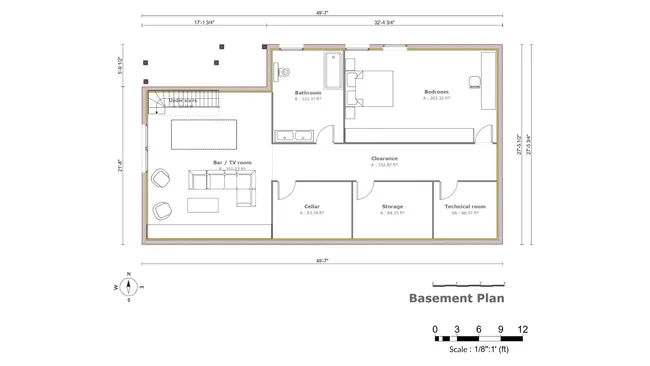
Basement floor plan (1/8″ = 1′-0″)
It’s easy to use.
But you can always count on Cedreo support.
For an even faster start, access tutorials and help articles.
Get tips to do more, faster.
“The ease of drawing the 2D layout plan was the main draw to this program. It was very intuitive compared to some other programs that were trialed.”
FAQs
A scaled floor plan is a scaled diagram that shows walls, doors, and windows at a fixed ratio to real life (for example, at 1/4″ = 1′-0″, a 12-foot wall measures 3 inches on the plan).
That makes it easier to measure the space, confirm dimensions, and communicate the layout, and Cedreo shows the scale on the drawing so you can double-check sizes on paper.
It means every part of the plan uses the same ratio, so walls, rooms, and openings shrink by the same amount on the page.
In Cedreo, you draw with real dimensions, then the printed sheet shows a clear scale so you can check sizes with a ruler or architect’s scale.
With Cedreo, you enter real dimensions and the software keeps measurements accurate without manual conversions.
It also helps you test different layouts faster, instead of redrawing the plan from scratch after every change.
In Cedreo, you draw using real measurements, and the software applies the scale when you export or print.
You still choose the scale that fits the paper size and the level of detail.
Yes, Cedreo lets you select a scale in the export and settings, then print at 100% so the plan stays accurate on paper.
In Cedreo, you can import PDF, PNG, JPEG, DWG, or DXF files, then trace to rebuild a clean plan.
This is helpful for remodels when you start from an existing plan or a quick sketch.
Many residential floor plans use 3/4″ = 1′-0″ for detail sheets like kitchen cabinets or bathroom fixtures, and 1/8″ = 1′-0″ for overview sheets.
Site plans often use 1/16″ = 1′-0″ or a smaller scale, such as 3/32″ = 2′-0″ or 3/32″ = 4′-0″, when you need the full lot on one sheet.
The easiest way to create floor plans to scale is with software like Cedreo, since the platform keeps walls, doors, and window measurements tied to real dimensions you can check with a tape measure.
In Cedreo, trace from floor plan templates, add furniture symbols, fixtures and decor items, then export as a printable to-scale plan for builders and interior designers.